

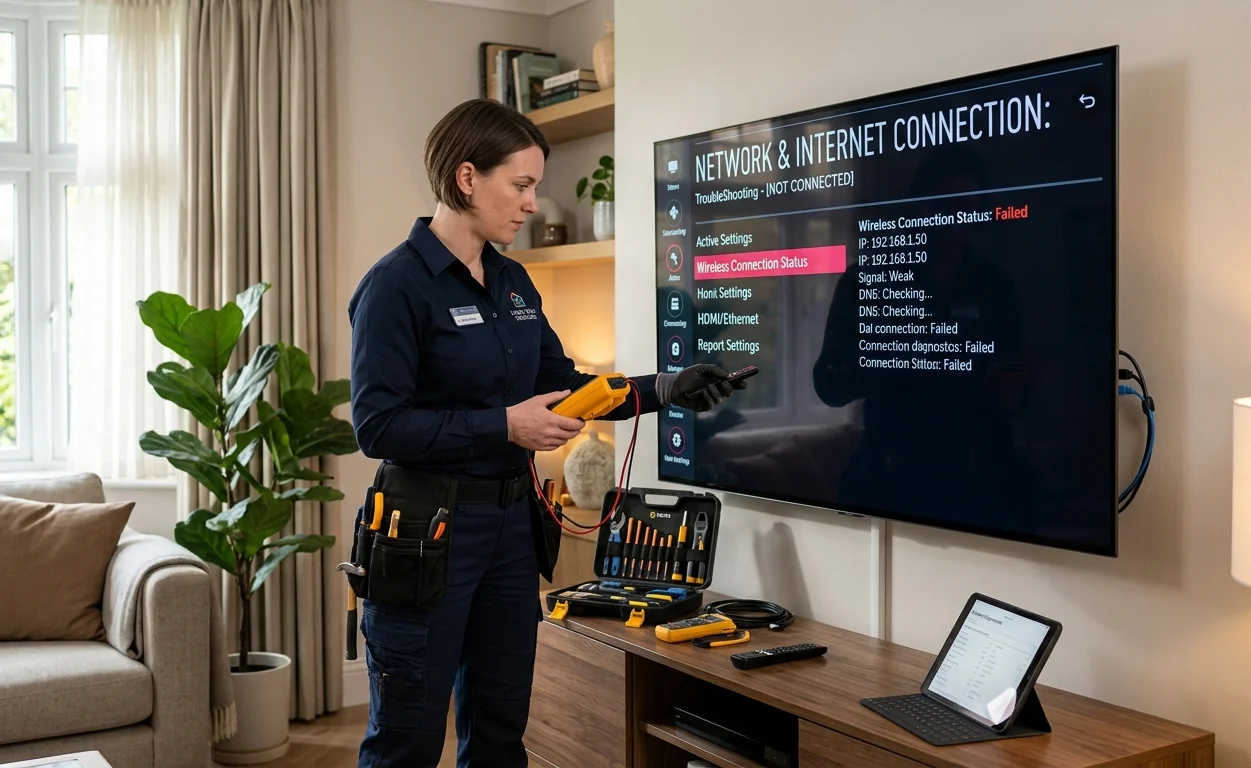
You’ve settled in for the evening, picked something to watch, and within minutes the screen freezes, the buffer spinner appears, or the app crashes entirely. Smart TV streaming problems are genuinely frustrating, and the causes aren’t always where you’d expect them to be.
The good news is that most smart TV streaming issues have straightforward explanations and practical fixes. Here’s what’s actually going wrong and what to do about it.
Why Smart TV Streaming Problems Happen
Modern smart TVs combine a television panel with an embedded computer, network connectivity, and a suite of streaming applications. When any one of those elements isn’t performing correctly, the streaming experience suffers.
The most common causes fall into three categories: network and connectivity issues, software and app problems, and hardware or setup faults. Understanding which category applies to your situation points you toward the right fix without wasting time on steps that won’t help.
Network and Connectivity Issues
Buffering and Video That Keeps Stopping
Buffering is the most universally complained about smart TV streaming problem, and in most cases the cause is either a weak Wi-Fi signal at the TV’s location or insufficient bandwidth for the quality being streamed.
4K streaming requires a consistent connection of at least 25 Mbps. HD streaming needs around 5 to 10 Mbps. If your internet plan delivers those speeds but your TV is still buffering, the issue is almost certainly Wi-Fi signal quality rather than plan speed.
What actually helps:
- Connect the TV via Ethernet cable rather than Wi-Fi, this removes signal quality from the equation entirely
- If Wi-Fi is the only option, move the router closer to the TV or add a mesh node in the viewing room
- Lower the streaming quality in your app settings from 4K to 1080p as a temporary test to confirm whether bandwidth is the issue
Smart TV Keeps Disconnecting From Wi-Fi
A TV that connects to Wi-Fi initially but drops out regularly is usually experiencing either a weak signal at the TV’s location or a router struggling to maintain multiple simultaneous connections.
Practical fixes:
- Restart both the router and the TV completely, unplugging each for 30 seconds
- Check whether other devices in the same area drop out, which confirms a coverage issue rather than a TV fault
- Update the TV’s firmware, as Wi-Fi stability improvements are frequently included in software updates
Screen Mirroring Not Working
When mirroring from a phone or laptop stops working, the most common cause is the two devices being on different network segments, even if both appear connected to the same Wi-Fi network.
Quick fixes:
- Confirm both devices are on the same Wi-Fi network name
- Restart both devices and the router
- Update both the TV and the source device software
If Wi-Fi coverage is a persistent issue across multiple rooms in your Sunshine Coast home, professional smart TV setup and network configuration resolves these kinds of problems properly rather than requiring repeated restarts.
App and Software Problems
Streaming Apps Loading Slowly or Crashing
Netflix, Disney+, Stan, YouTube, and other streaming apps run on the TV’s internal processor and memory. When those apps accumulate cached data, when the TV’s software is outdated, or when too many apps are installed simultaneously, performance degrades noticeably.
What to try:
- Restart the TV fully rather than just putting it on standby
- Check for and install pending software updates through the TV’s settings menu
- Clear the cache for specific apps if that option is available in your TV’s app management settings
- Uninstall streaming apps you no longer use to free up storage and memory
The ACMA’s guidance on finding Australian broadcasters’ apps on your TV is also worth checking if free-to-air catch-up apps like ABC iview, 9Now, or 7Plus aren’t appearing correctly on your smart TV, particularly on models sold after January 2026 which have new app prominence requirements.
Poor Picture Quality During Streaming

If your smart TV streaming picture looks blurry, blocky, or lower resolution than it should be, the streaming platform is automatically adjusting quality downward because it’s detecting inconsistent bandwidth at your device.
This almost always comes back to the connection quality at the TV, not your overall internet speed. Even on a 100 Mbps NBN plan, a TV receiving a weak Wi-Fi signal gets inconsistent speeds that trigger automatic quality reduction. Connecting via Ethernet typically resolves this immediately.
Once your streaming is running smoothly, hiding TV cables tidily behind the wall gives the whole entertainment setup a much cleaner and more professional finish.
Audio Out of Sync With Video
Audio sync issues during smart TV streaming are usually caused by processing delays, particularly when audio is being passed through an external soundbar or AV receiver via HDMI ARC or optical connection.
Adjustments that help:
- Restart the streaming app completely rather than pausing and resuming
- Check audio delay or lip sync settings in the TV’s audio menu, most TVs include an adjustable audio delay option
- If using a soundbar, check whether it has its own audio delay setting
- Try switching audio output format between Dolby Digital and PCM to see whether one performs better with your setup
Setup and Hardware Issues
TV Picture Looks Wrong After Setup
If your smart TV streaming picture looks overly vivid, blown out, or unnatural compared to what you expected, the TV is likely using a default picture mode designed for bright retail showrooms rather than home viewing.
Switching to a Cinema, Movie, or Calibrated picture mode in the TV’s settings menu typically delivers a significantly more natural and accurate image for streaming content.
TV Mounting Position Affecting Wi-Fi and Streaming
This is one that most people don’t consider. A TV mounted inside an enclosed entertainment unit receives significantly weaker Wi-Fi signal because the TV’s internal antenna is blocked by the surrounding cabinet material. The same applies to TVs pushed into corners or positioned against thick concrete walls.
Professional TV mounting on the Sunshine Coast takes signal strength into account alongside viewing height and angle, so your TV’s wireless performance isn’t compromised by where it’s installed.
Getting Your Smart TV Performing Properly
Persistent smart TV streaming issues are almost always solvable. Whether it’s a Wi-Fi coverage problem, an app configuration issue, picture calibration, or a setup that needs professional attention, the right diagnosis points to the right fix quickly.
See what other Sunshine Coast locals think of our work by reading what our customers say before you book.
Explore our full range of TV mounting, antenna, home theatre, and smart TV services at Brocky’s TV.
Book Your Smart TV Setup Today
Don’t keep putting up with a smart TV streaming experience that frustrates more than it entertains. The team at Brocky’s TV helps Sunshine Coast households get their smart TV performing the way it should, with professional setup, calibration, and network configuration that delivers results from day one.
Call us on 0754059022, Monday to Friday during business hours.
Contact us today to book your smart TV setup or get a no-obligation quote on any installation work across the Sunshine Coast
FAQs
1. Why does my smart TV keep buffering even on a fast NBN plan?
Fast NBN speeds at your modem don’t guarantee fast speeds at your TV. A weak Wi-Fi signal between the router and TV is the most common cause. Connecting via Ethernet or improving Wi-Fi coverage at the TV’s location resolves this in most cases.
2. Why do streaming apps keep crashing on my smart TV?
Outdated TV software, accumulated app cache, or insufficient internal storage are the most frequent causes. Updating the TV firmware, restarting it fully, and clearing app caches usually resolves this quickly.
3. My smart TV picture looks blurry during streaming. What’s wrong?
The streaming platform is automatically reducing quality because it’s detecting inconsistent bandwidth at your TV. This is a Wi-Fi signal quality issue, and connecting via Ethernet typically fixes it immediately.
4. Why does my audio go out of sync during smart TV streaming?
Audio sync issues usually occur when audio passes through an external soundbar or receiver. Most TVs include an audio delay adjustment in their settings menu, or switching between Dolby Digital and PCM output can help.
5. Can the TV’s mounting position affect streaming performance?
Yes. A TV mounted inside an enclosed entertainment unit receives significantly weaker Wi-Fi signal because the internal antenna is blocked. An open wall mounting position improves wireless performance noticeably.