

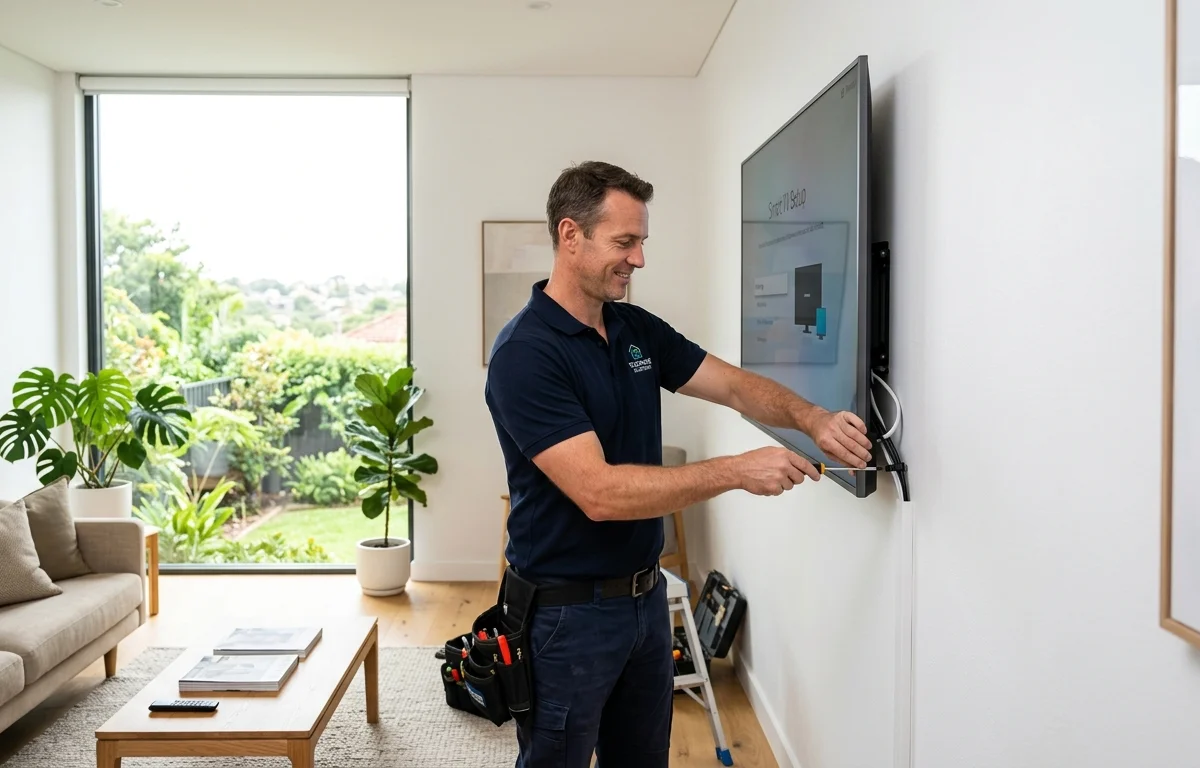
Got a shiny new Smart TV sitting in its box? Before you rip open the packaging and start plugging things in, it’s worth taking a few minutes to do this properly. A rushed setup can mean poor picture quality, dodgy Wi-Fi connections, buffering nightmares, and a TV that never quite performs the way it should.
Whether you’ve just upgraded to a 65-inch OLED or grabbed a mid-range LED for the living room, this guide walks you through smart TV installation the right way, so you get the best out of every dollar you’ve spent.
Why Smart TV Setup Matters More Than You Think
Most people pull the TV out, plug it in, and start clicking through the on-screen prompts. But the truth is, how you set up your Smart TV from the start has a direct impact on:
- Picture and sound quality
- Streaming performance and buffering
- App reliability and update speed
- Overall lifespan of the unit
A proper Smart TV installation in Caloundra takes into account your room’s lighting, viewing angles, wall mounting options, internet connection strength, and antenna signal, all things that affect your day-to-day viewing experience.
Step-by-Step: Setting Up Your Smart TV Correctly
1. Choose the Right Location First
Before anything gets plugged in, think about placement. Avoid:
- Direct sunlight or windows behind the screen (causes glare and washes out colour)
- Spots with poor ventilation (TVs need airflow to avoid overheating)
- Corners or alcoves where Wi-Fi signal is weak
Wall mounting is usually the cleanest and safest option. If you’re in the Sunshine Coast region, professional TV mounting on the Sunshine Coast ensures the bracket is properly anchored, cables are hidden, and the viewing height is just right.
2. Run a Signal Check Before You Connect the Antenna
One of the most overlooked steps. Before connecting your antenna lead, check that your home is actually receiving a clean digital signal. Weak or fluctuating signals cause pixelation, dropouts, and missing channels, even on a brand new TV.
The Australian Communications and Media Authority (ACMA) provides information on TV reception standards across Australia, and it’s worth understanding what signal quality your area should be receiving.
If you’re dealing with a pixelating or breaking-up picture, check out our guide on why your TV is pixelating and how to fix it for a full breakdown of common causes and solutions.
3. Connect to Your Home Wi-Fi Properly
Most Smart TVs have both wired (ethernet) and wireless connection options. Where possible, use an ethernet cable for streaming. It’s faster, more stable, and eliminates the buffering you’d otherwise blame on Netflix.
If Wi-Fi is your only option:
- Place your router as close to the TV as practical
- Use the 5GHz band (not 2.4GHz) if your TV supports it
- Avoid placing the router behind walls, furniture, or inside cupboards
4. Update the Firmware Before You Do Anything Else
The moment your Smart TV connects to the internet, head straight to Settings > System > Software Update. Manufacturers regularly push updates that fix bugs, improve app compatibility, and patch security issues. Starting on an outdated firmware version is one of the most common mistakes people make.
5. Calibrate Your Picture Settings
Out of the box, most TVs are set to “Vivid” or “Dynamic” mode, which looks great on a showroom floor under fluorescent lights, but is far too bright and oversaturated for a home environment.

For a home lounge room, switch to:
- Cinema or Movie mode for evening watching
- Standard mode for daytime viewing
- Turn off motion smoothing (often called “Soap Opera Effect”) unless you specifically want it
For reference, display calibration is a well-established practice used by AV professionals to achieve accurate, consistent colour reproduction, and even basic adjustments make a real difference.
6. Set Up Your Streaming Apps and Accounts
Once the TV is calibrated and connected:
- Download only the apps you’ll actually use (too many apps slows Smart TVs down)
- Log into streaming services one at a time
- Enable auto-updates for apps in the background
When to Call in a Professional
If any of the following apply, it’s worth getting a local expert involved:
- You want your TV wall mounted safely and at the perfect height
- Your picture is still poor after setup (could be an antenna or signal issue)
- You’re setting up multiple TVs across the home
- You’re not confident with cable management or connections
At Brocky’s TV, we handle everything from Smart TV set up in Caloundra through to full antenna checks and wall mounting, so you’re not left guessing. Don’t just take our word for it see what Caloundra locals are saying about Brocky’s TV on Google.
Get It Done Right the First Time
Brocky’s TV has been helping Caloundra and Sunshine Coast locals get the most out of their televisions from wall mounting to full Smart TV setup done right the first time.
A Smart TV is an investment, and setting it up properly means you’ll actually enjoy it from day one. Whether you’re a DIY type who just needed a bit of direction, or you’d rather leave it to someone who does this every day, the most important thing is that your TV is working the way it should.
Your new Smart TV deserves a perfect setup, contact us at Brocky’s TV and let’s get it done right.
Frequently Asked Questions
1. How long does a Smart TV setup take?
A basic setup typically takes 30–60 minutes. If wall mounting and cable concealment are included, allow 1.5–2 hours for a professional installation.
2. Do I need an antenna if I have a Smart TV?
Yes, if you want to watch free-to-air channels like ABC, Nine, or Seven, you still need a working antenna. Streaming apps are separate from broadcast TV.
3. Why is my new Smart TV buffering so much?
Most buffering issues come down to Wi-Fi signal strength or router placement. A wired ethernet connection is the most reliable fix. If the issue persists, it may be your internet speed.
4. Can I mount any Smart TV on the wall?
Most modern Smart TVs are VESA-compatible and can be wall mounted. Always check your TV’s VESA pattern and use the correct bracket, or have a professional install it safely.
5. What picture mode should I use for my Smart TV?
For home use, “Cinema” or “Movie” mode gives the most accurate and comfortable picture. Avoid “Vivid” or “Dynamic” mode, which is designed for bright retail environments.