
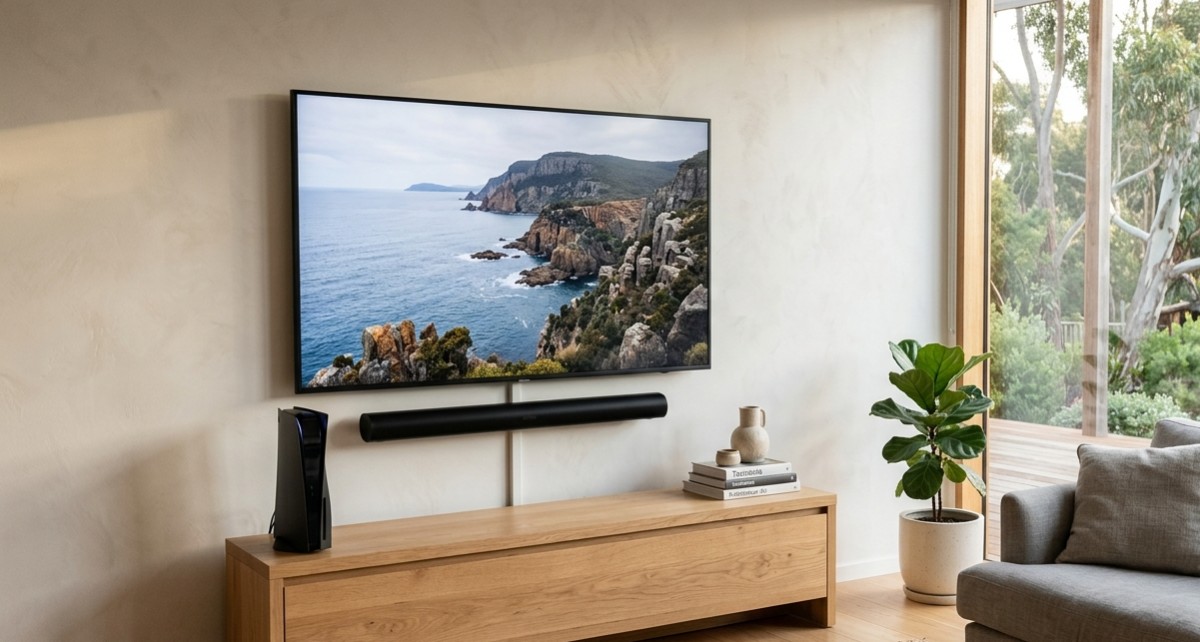
fast once you’re staring at a tangle of HDMI cables, remotes, and settings menus. Getting your new screen mounted is only half the job the real difference between an average setup and a genuinely great one comes down to how well your soundbar and gaming console are connected to it.
This is one of the most common questions we get from Sunshine Coast households after a new Smart TV Setup Sunshine Coast installation: “how do I actually connect everything properly?” Whether you want to connect soundbar to Smart TV without a mess of cables, or you’re trying to get your gaming console running in the best possible picture and sound quality, this guide walks you through it step by step.
Why Proper Connections Matter More Than People Think
It’s easy to assume that plugging a cable into any available port will “just work.” Technically, it often does but not always at full quality. Poor connections or the wrong ports can lead to:
- Audio that’s slightly out of sync with the picture
- Lower resolution or frame rate than your console is actually capable of
- Soundbars defaulting to basic stereo instead of full surround sound
- Random dropouts or devices not being recognised properly
Getting the connections right from the start means you actually get the performance you paid for, rather than settling for “good enough.”
Step 1: Understand Your TV’s HDMI Ports
Not all HDMI ports on your Smart TV are equal. Most modern TVs have at least one HDMI ARC (Audio Return Channel) port, which is specifically designed for connecting soundbars. According to Wikipedia’s explanation of HDMI, the Audio Return Channel allows audio to be sent from a display back to an audio system over the same HDMI cable meaning your TV can send sound to your soundbar without needing a separate audio cable at all.
Some newer TVs also include eARC (Enhanced ARC), which supports higher-quality audio formats like Dolby Atmos. Checking your TV’s manual or rear panel labelling will tell you exactly which ports support this feature.
Step 2: How to Connect Soundbar to Smart TV
Here’s the simplest, most reliable way to connect your soundbar for the best possible sound quality:
- Locate the HDMI ARC or eARC port on the back of your TV (usually labelled clearly)
- Connect one end of an HDMI cable to this port
- Connect the other end to the corresponding ARC/eARC input on your soundbar
- Turn on both devices and check your TV’s audio output settings to ensure it’s set to “ARC” or “HDMI”
- Test the sound by playing something with clear dialogue and background music to confirm balance
If your TV doesn’t have an ARC port, an optical cable is the next best option, though it won’t support the newest high-quality audio formats. For a proper technical breakdown on getting the most out of ARC and eARC connections, this HDMI ARC and eARC guide is a genuinely useful reference.
Step 3: Connecting Your Gaming Console the Right Way
Gaming consoles need a bit more attention than a simple plug-and-play connection, especially if you want the best picture quality and lowest input lag.
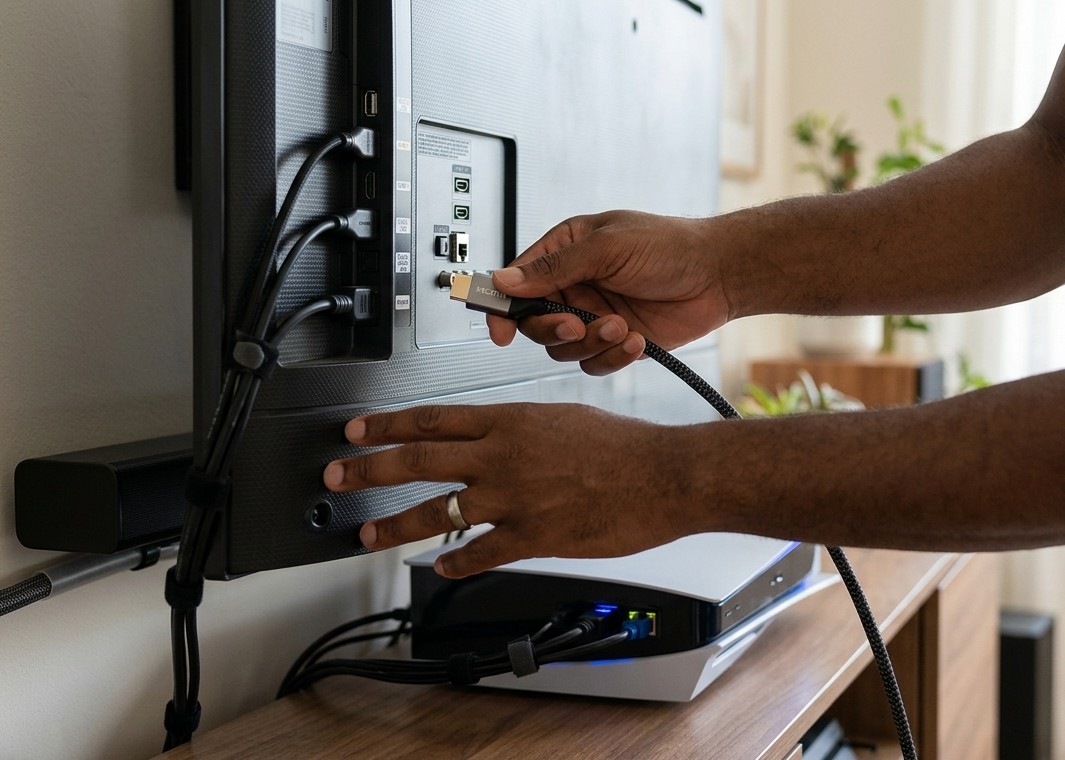
- Use the HDMI port labelled for gaming or highest bandwidth if your TV has multiple HDMI versions
- Enable Game Mode in your TV’s picture settings to reduce input lag
- Check your console’s video output settings to match your TV’s supported resolution and refresh rate
- Connect audio through your soundbar via ARC, rather than directly from the console, to avoid juggling multiple audio sources
Getting this right means smoother gameplay, better visuals, and audio that stays properly in sync something console gamers notice immediately once it’s set up correctly.
Common Mistakes to Avoid
- Using the wrong HDMI port for ARC, which prevents audio from working through the soundbar at all
- Forgetting to update TV or soundbar firmware, which can cause compatibility issues with newer devices
- Ignoring audio settings menus, leaving sound on basic stereo instead of full surround options
- Overloading a single HDMI port with a splitter instead of using the TV’s multiple inputs properly
When It’s Worth Calling in a Professional
For a simple two-device setup, most people can follow the steps above without much trouble. But if you’re dealing with a full Smart TV Setup Sunshine Coast service including wall mounting, multiple HDMI devices, a soundbar, gaming console, and smart home integration getting everything configured correctly can quickly become more complex than it first appears.
This is exactly where professional help makes a genuine difference. At Brocky’s TV Antennas, we handle the entire setup process, from mounting your new screen to configuring every connected device so it works exactly as it should from day one.
If you’re also planning to mount your new TV as part of the setup, our TV Mounting Sunshine Coast service ensures a clean, secure installation with cables neatly hidden, rather than trailing across the wall.
Thinking Beyond the Basics: Building a Full Home Theatre
If you’re already connecting a soundbar and console, you might be closer to a full home theatre setup than you realise. We’ve covered exactly what a complete system needs in our guide on the 7 things you need for the perfect home theatre system, which builds on everything covered here.
You can also see what local Sunshine Coast customers have said about working with our team on our Google Business Profile.
Final Thoughts
Connecting a soundbar and gaming console to a new TV isn’t complicated once you know which ports to use and what settings to check. Whether you’re doing it yourself or want a completely hassle-free Smart TV Setup Sunshine Coast experience, getting these connections right from day one means better sound, sharper visuals, and a setup you’ll actually enjoy using.
Ready for a hassle-free setup? Contact us today and let our team handle the mounting, connections, and configuration, so all you have to do is sit back and enjoy the show.
FAQs
1. Why isn’t my soundbar producing sound through HDMI ARC?
Check that both your TV and soundbar are connected via the correct ARC-labelled port, and that your TV’s audio output setting is switched to “ARC” or “HDMI” rather than internal speakers.
2. Do I need eARC for gaming consoles?
Not strictly, but eARC does support higher-quality audio formats like Dolby Atmos if your console and soundbar both support it.
3. Can I connect a soundbar and console to the same HDMI port?
No, they each need their own HDMI port. Using a splitter can cause performance and compatibility issues.
4. Should I update my TV’s firmware before connecting new devices?
Yes, it’s good practice, as outdated firmware is a common cause of connection and compatibility problems.
5. Will connecting my console directly to the soundbar improve performance?
Generally no it’s better to connect your console directly to the TV, then run audio from the TV to the soundbar via HDMI ARC. This keeps video processing and audio sync working correctly through a single, consistent path.